iCreateOFX PayPal OFX Converter
Convert PayPal CSV, IIF and QIF transactions' files to OFX.
- Convert PayPal Personal CSV and QIF files to OFX.
- Convert PayPal Premier CSV files to OFX.
- Convert PayPal Business CSV files to OFX.
- Convert PayPal, Bank and Cash account QIF files to OFX.
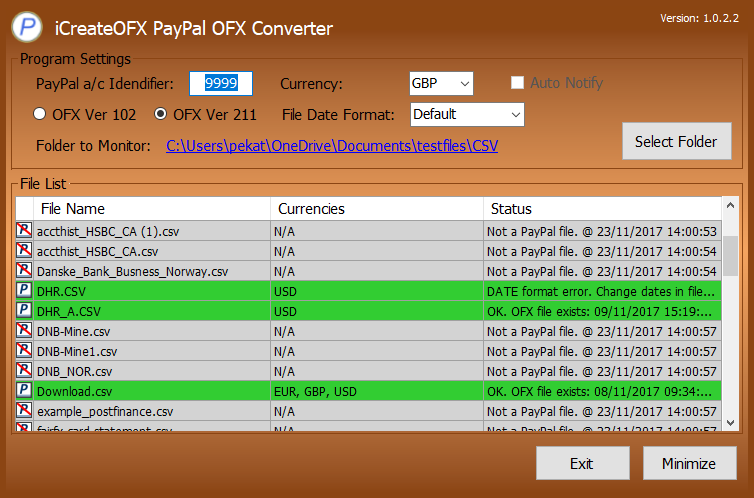
The interface consists of six (6) customizable settings. These are, from the top left:
- PayPal a/c Identifier: Please specify 4 digits to identify the PayPal OFX file to your PFM. By default, an account number of PayPal_9999 is applied to PayPal OFX files. The value you enter here persists over sessions.
- Currency: Select the primary currency of your PayPal account. By default, the currency is set to the sytem currency, e.g GBP for United Kingdom and USD for United States.
-
Auto Notify Microsoft Money*: This option will only be enabled if the system has a program associated with OFX files. Select this box if you prefer PayPal OFX Converter to send the
written OFX file to Microsoft Money (or the associated program for OFX files - see below).
* Note that this feature will only prompt you to run the program that is associated with OFX files on your system, which may / may not be Microsoft Money. The associated program's executable name may be displayed instead. - OFX Version: Select the required OFX format that your PFM accepts. This is either OFX Version 102 or Version 211. Some Personal Financial Manager(s) (PFMs) support either or both of the versions. You can try each version to find out which one is imported by your PFM.
- File Date Format: Choose or enter a date format matching the format in the PayPal CSV / QIF file. Default assumes the date format in the file is the same as the system date.
- Folder to Monitor / Select Folder: This setting is discussed in detail under Operation and Usage below.
NOTE: You can start the help file by pressing the F1 key.
Operation and usage.
On startup, the program will scan the selected folder (by default, this set to the user's My Documents folder) for all CSV and QIF files, determining whether the CSV files are PayPal CSV files. For each PayPal CSV file, an OFX file of the same name as the CSV file, but with the extension changed to .OFX, will automatically be written in the folder OFX Files under the current selected folder. For example, a PayPal CSV file saved as PayPal0810.csv will have a corresponding OFX file of PayPal0810.OFX in the OFX Files directory. QIF files containing supported accounts will also have correspondingly named OFX files written as explanied above.
Additionally, any CSV or QIF file that is added to the target folder while PayPal OFX Converter is running will be scanned, and if it is a PayPal CSV file or a supported QIF Account**, a corresponding OFX file written to the destination folder as described above.
You can also re-write an OFX file by double clicking the file name in the grid, OR right-clicking on the CSV or QIF file in the list and selecting Re-Write OFX File, or you can select multiple files and re-write the OFX files by pressing the F5 key.
The Exit button closes the program, while the Minimize button minimizes the program to the System tray. You can recall the interface to the fore by simply clicking on the icon that appears in the system tray on minimizing.
PayPal OFX Converter is NOT freeware and is in no way affiliated to PayPal. The program is available on a No Obligation 30 Day trial period at the end of which a one-time license fee is payable.